


Home Assistant
Install Home Assistant Lovelace Cards
Install Smart Home Floorplan cards to put on your Home Assistant Lovelace dashboards.
We'll be using HACS to install the cards. Follow the steps on this page.
Install HACS (The Home Assistant Community Store)
HACS allows you to easily install community extensions to Home Assistant. If you already have HACS installed and configured, you can skip this step.
Follow these steps to install and configure HACS:
- 1Prerequisites
- 2Download
- 3Configure
Add the Smart Home Floorplan repositories to HACS
We want to install two repositories:
shf-ha-frontend: Contains the Smart Home Floorplan Lovelace cardshf-ha-integrations: Is a bridge allowing the Lovelace card to talk with the add-on
Follow these steps to install the repositories:
- 1Open HACS
Click into HACS.
- 2Open the top-right menu
Click the ⋮ in the top-right corner of HACS to open the menu.
- 3Open Custom repositories
Click "Custom repositories" to open the Custom repositories modal.
- 4Add the frontend repository
Fill in values for the first repository, then click Add. Use Repository https://github.com/loelabs-net/shf-ha-frontend and Type
Dashboard. - 5Add the integration repository
Fill in values for the second repository, then click Add. Use Repository https://github.com/loelabs-net/shf-ha-integrations and Type
Integration. - 6Close the modal
Click X to close the modal.
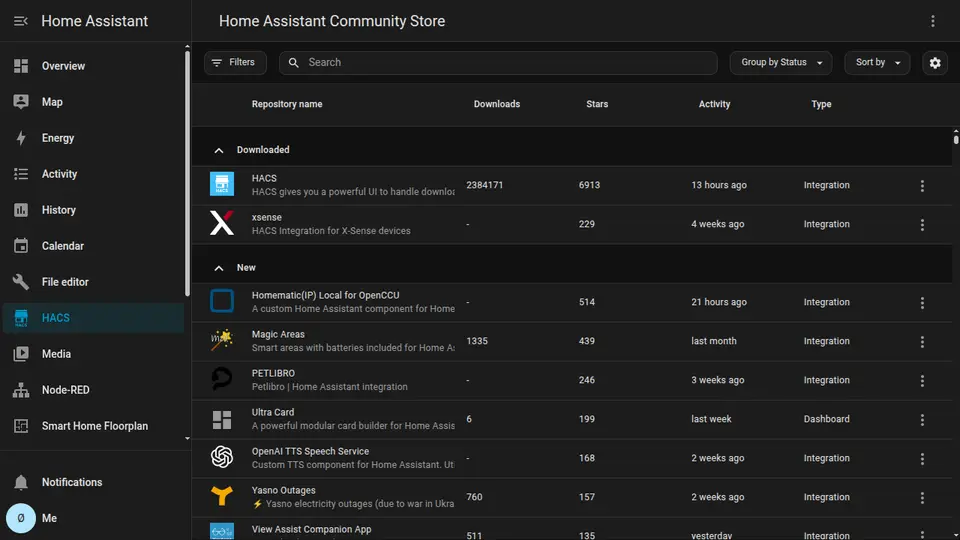
1. Click into HACS
2. Click to open the menu
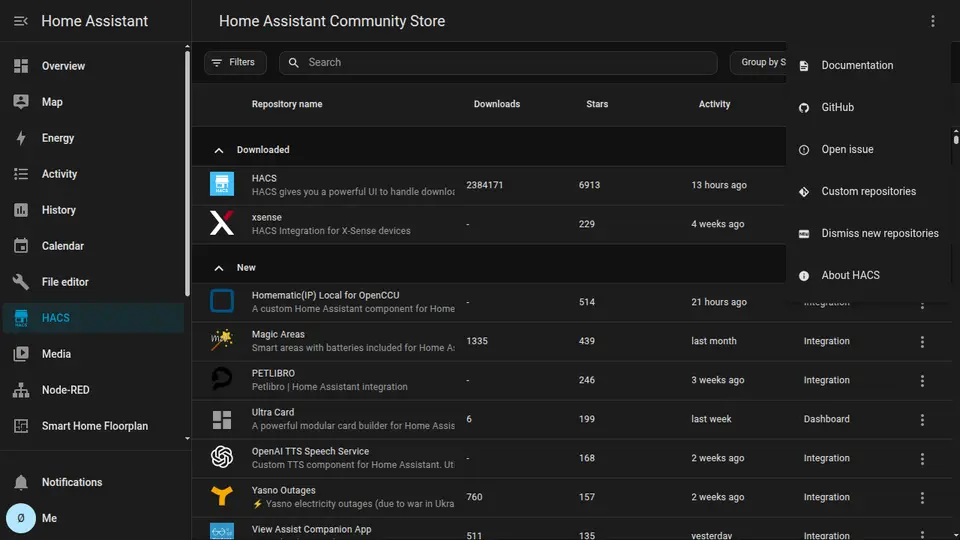
3. Click here
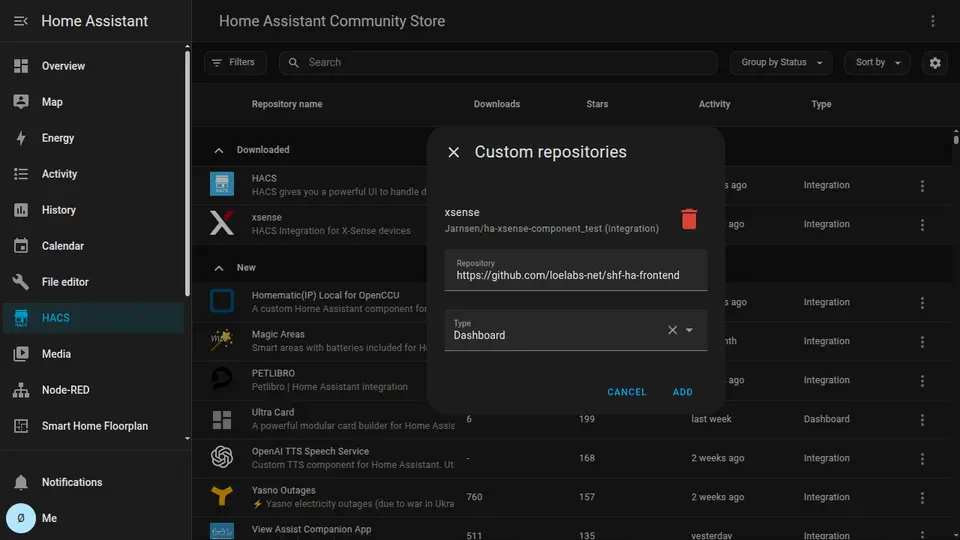
4. Fill in the values, then click add, then X
Install the Card and Integration
After the repositories are installed, you can install the card and integration.
- 1Search for Smart Home Floorplan
Type "smart home floorplan" into the search bar in HACS. Two options should appear.
- 2Download both packages
For each option, click ⋮, then select Download, and then Download again in the popup that appears.
- 3Restart Home Assistant if needed
You may have to restart Home Assistant for the changes to take effect. Go to Settings, then System, and click the power button in the top-right corner of the window.
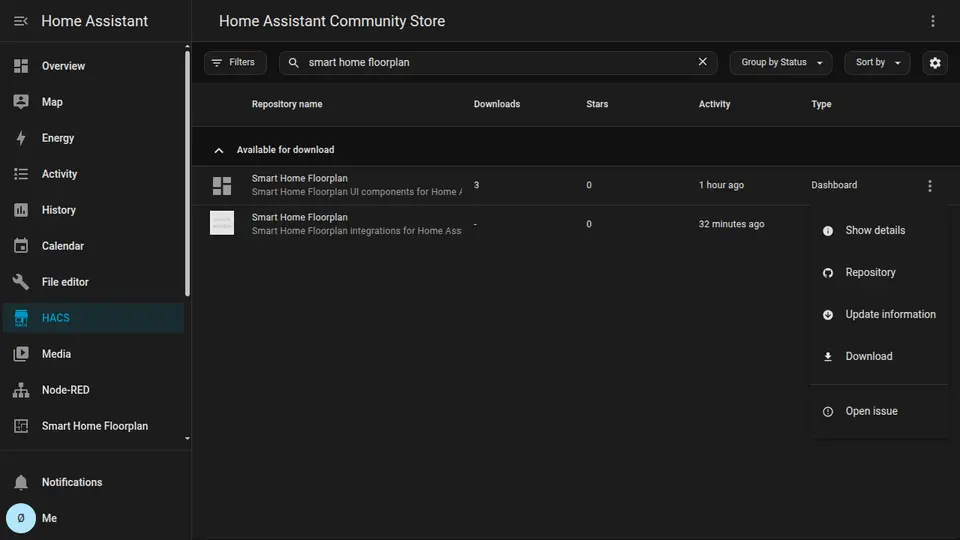
1. Type in search query
2. Open menu and click Download
Add cards to your Home Assistant dashboards
The Smart Home Floorplan card is now ready to add to your dashboard. Follow the Home Assistant documentation on how to add cards to your dashboards.